

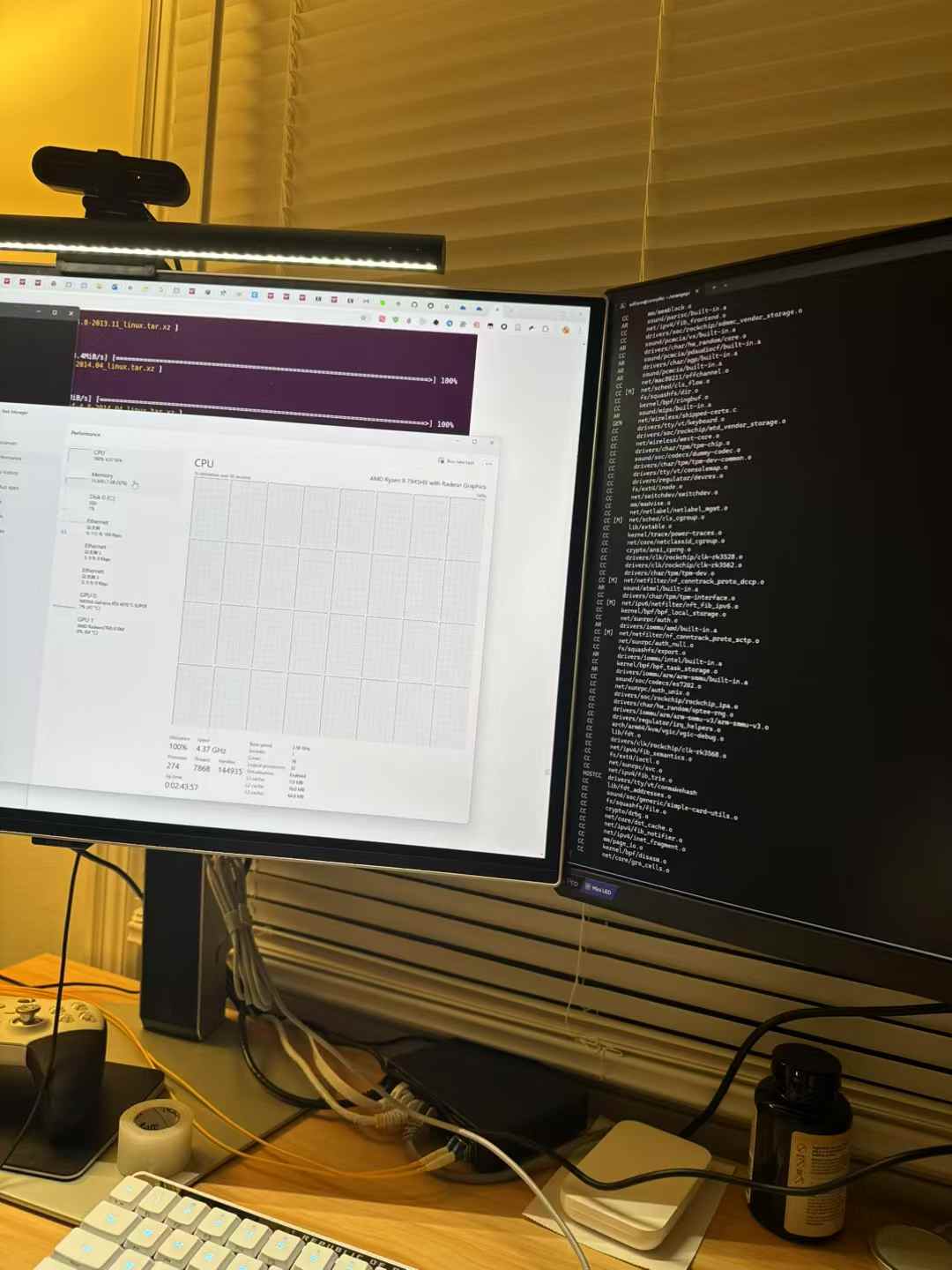

Introduction
Recently, I purchased an Orange Pi 5 Plus development board from Amazon. After installing Debian on it, I started thinking about migrating the services I deployed via Cloudflare Tunnel (Pastebin & this blog) from a machine in mainland China to the development board. This would significantly reduce latency and improve responsiveness.
Migrating my blog, which uses Halo, was relatively straightforward. Thanks to its built-in backup functionality, transitioning from x64 to ARM64 was as simple as downloading and restoring a zip file. Big thanks to the Halo development team!
Now comes the tricky part: my Pastebin service is a customized version of the ptpb/pb fork. Since I initially deployed it in mainland China, I had heavily modified the Dockerfile. However, I had never attempted to build it on an ARM64 device before—and unsurprisingly, failed. Given my limited understanding of the project’s architecture, I decided to take a conservative approach by running the project through QEMU emulation. While this results in a performance hit, it at least ensures reliability.
Unfortunately, I didn’t keep a detailed record of the steps involved, so the problem diagnosis and descriptions might not be as clear as they could be.
And so the nightmare journey began.
Guess what? The Debian 12 image provided by Orange Pi 5 Plus doesn’t include a kernel with binfmt_misc support. This means it can’t natively execute binaries built for other architectures (e.g., x64).
(binfmt_misc is a feature of the Linux kernel that allows registering interpreters to run executables of non-native architectures or formats, such as simulating ARM or x86 binaries with QEMU.)


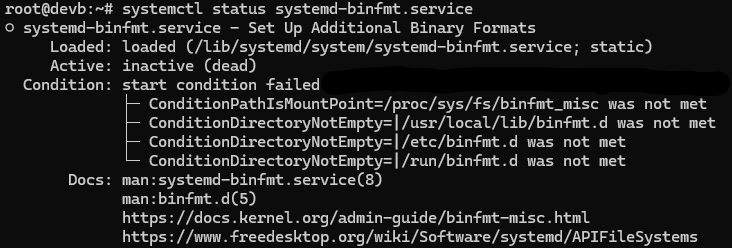
This lack of support means that if I want to seamlessly run x64 binaries on ARM64 (e.g., x64 Docker containers), I would need to customize and compile a kernel that supports binfmt_misc.
Let’s get started: Compiling the kernel!
After searching online for “Orange Pi 5 Plus” and “kernel compilation,” I found Orange Pi’s official documentation. I then set up an Ubuntu 22.04 virtual machine on VMware as the build environment.
Clone the Repository
git clone https://github.com/orangepi-xunlong/orangepi-build
Enter the Directory
cd orangepi-build
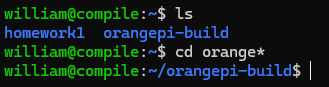
Run the Build Script
./build.sh

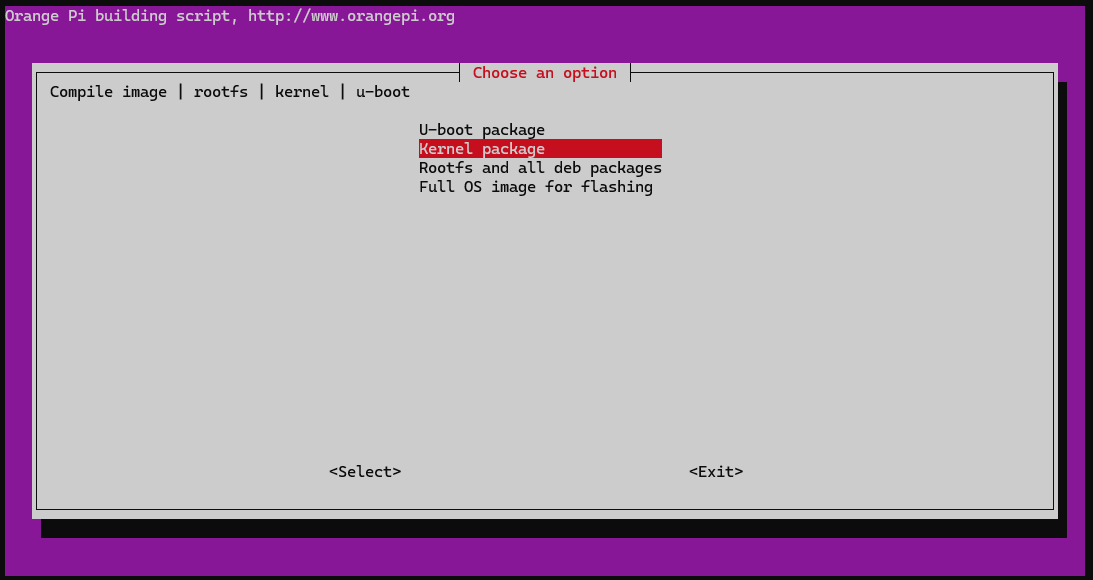
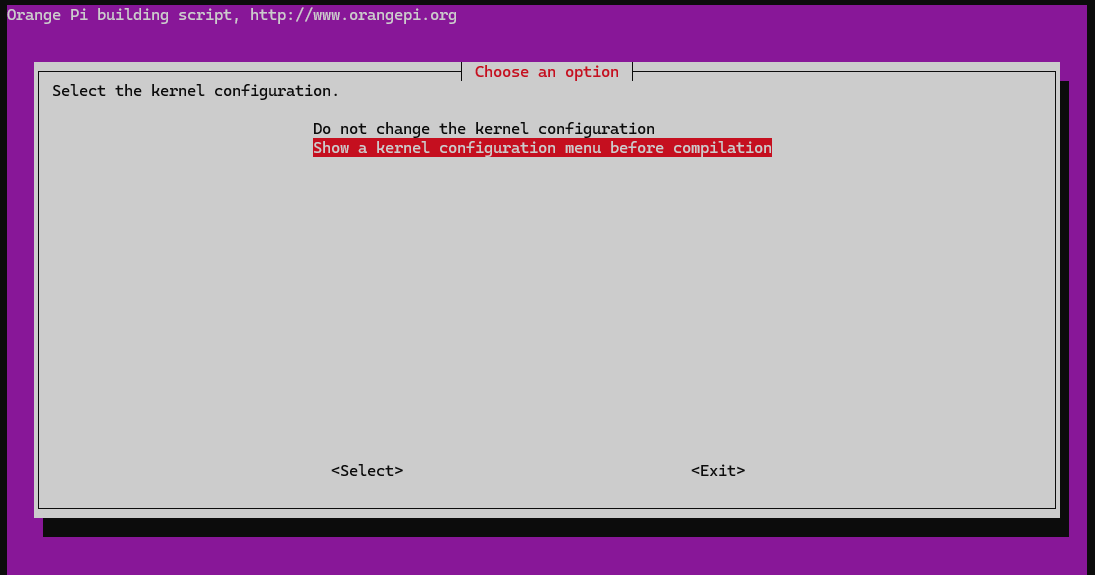
Select Target Device
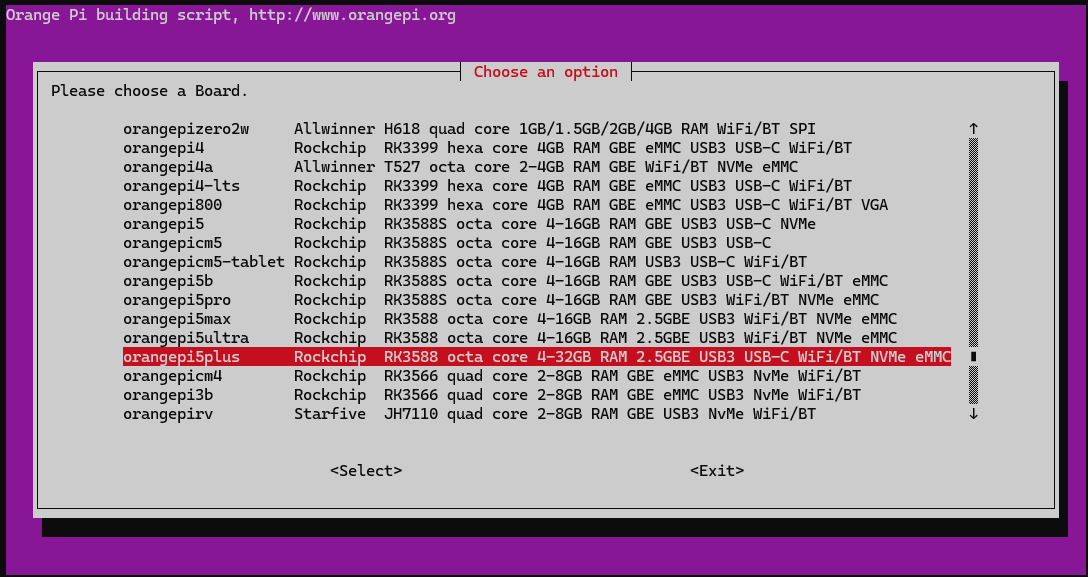
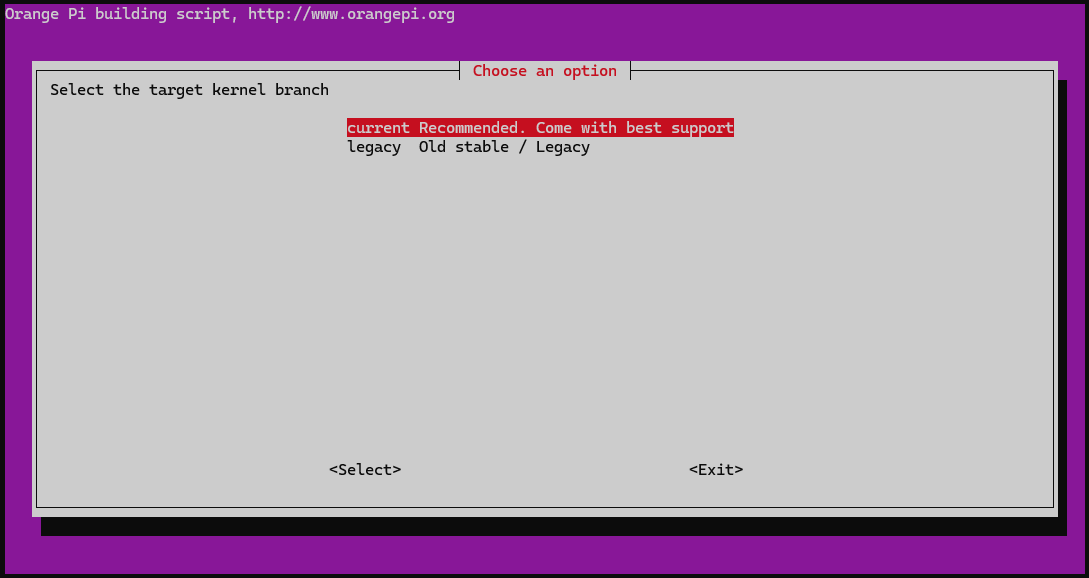
Configure the Kernel
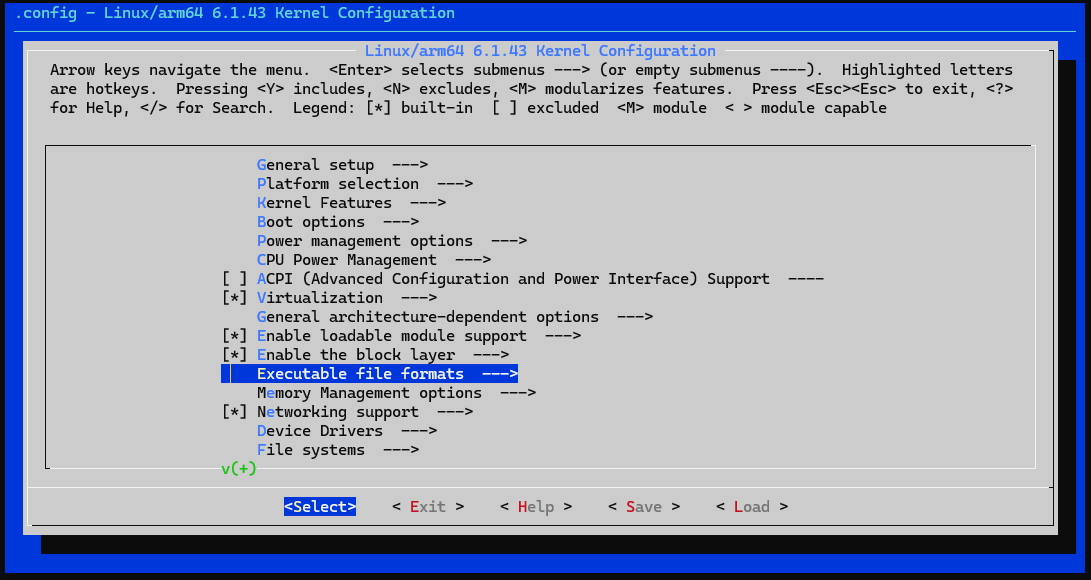
Enable binfmt_misc support:
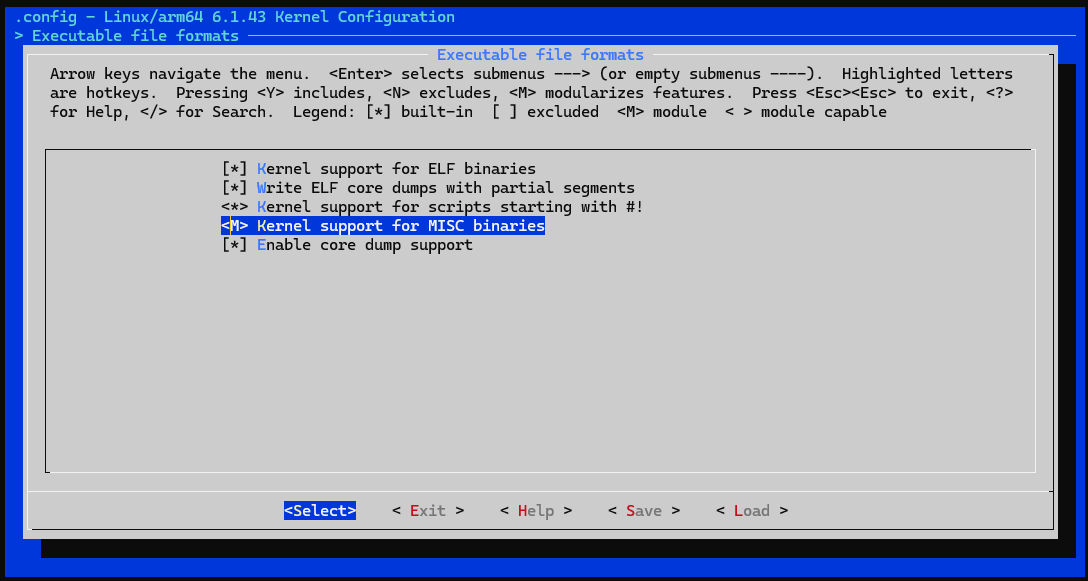
Save and Exit
(No image here, but I trust you can handle this part.)
Wait for Compilation to Complete
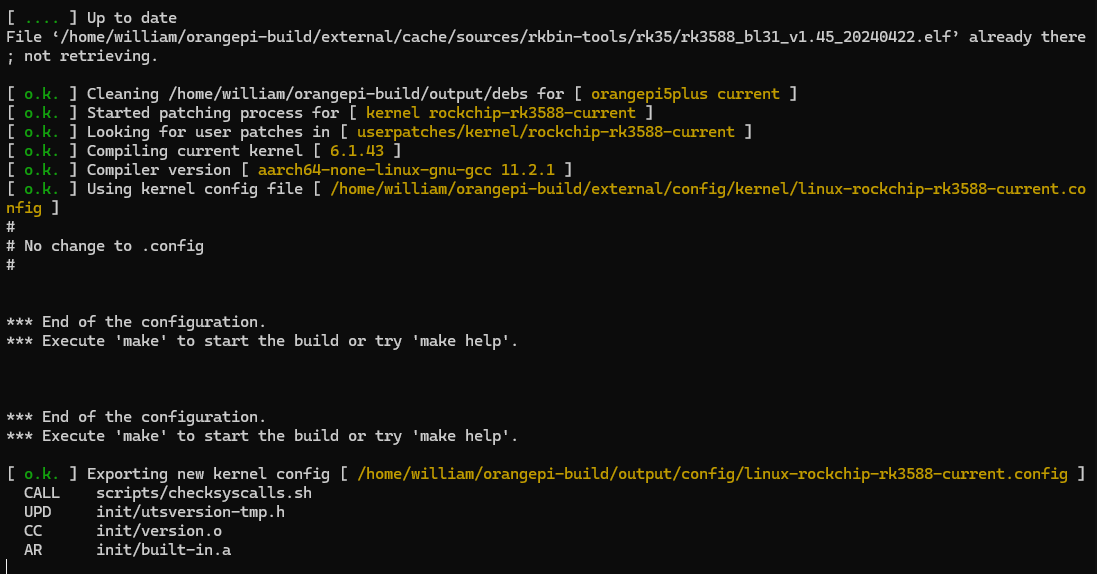
My First Custom-Compiled Linux Kernel!
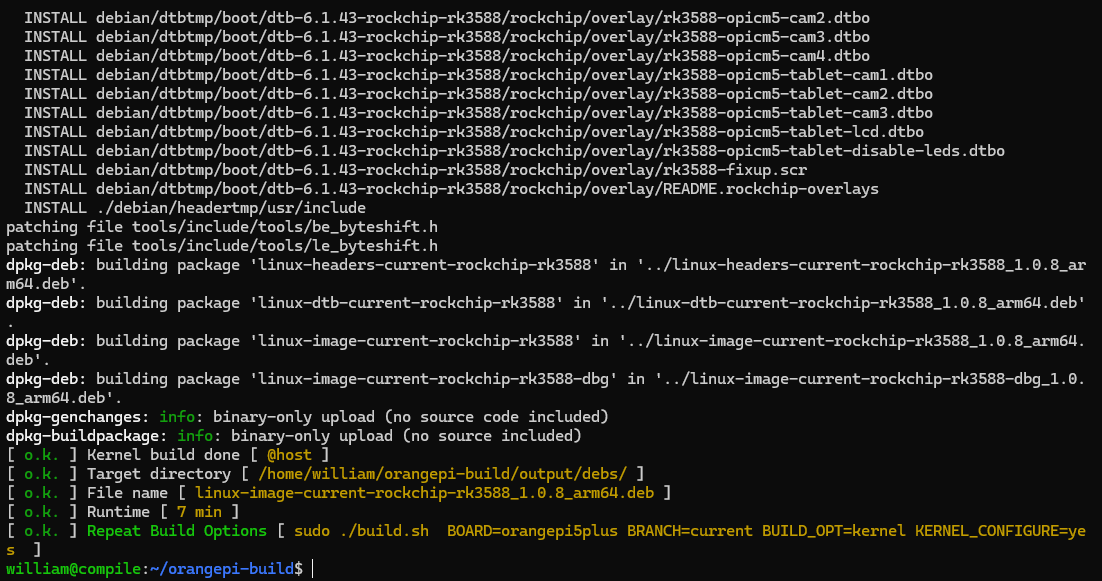
The compiled .deb packages can be found in the output/debs directory:

Out of the four .deb files, we only need to upload all except linux-image-current-rockchip-rk3588-dbg_1.0.8_arm64.deb to the development board.
Install the Kernel
First, uninstall linux-image-current-rockchip-rk3588, linux-dtb-current-rockchip-rk3588, and linux-headers-current-rockchip-rk3588.
Then, use dpkg -i to install the newly uploaded kernel packages.
Finally, reboot the system:
reboot
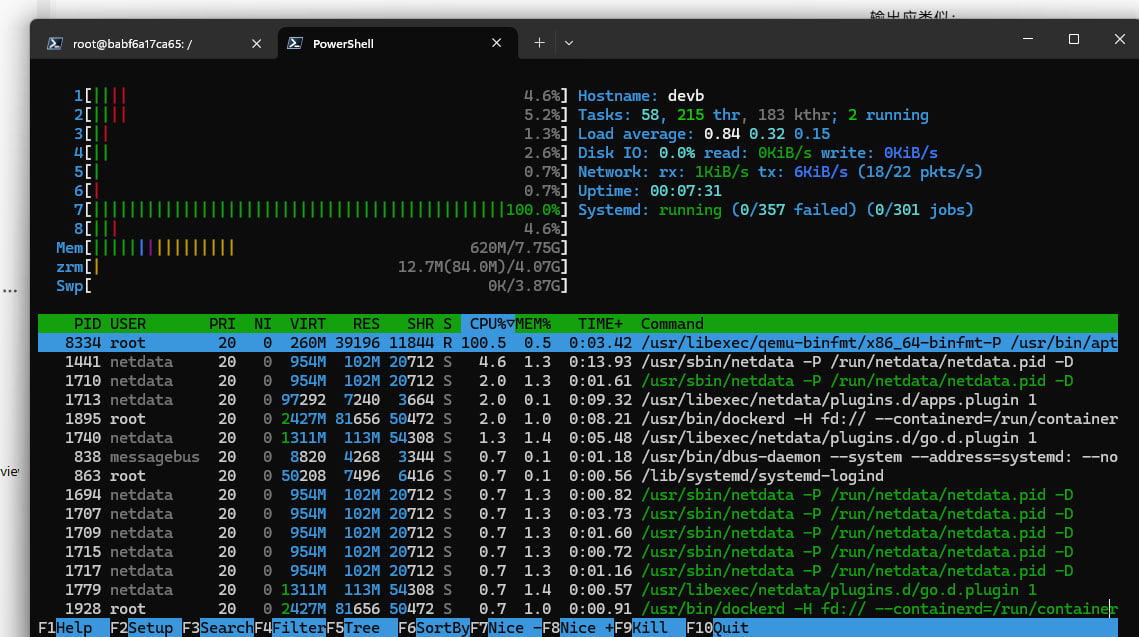
Verify Functionality

Mission Accomplished!
Acknowledgments
Special thanks to Yangyu Chen, Revy, and Ziyao for their invaluable support and guidance!